
Using the Web Console
EasyTier supports using the Web Console to manage EasyTier nodes, including viewing node status, configuring node parameters, viewing node logs, and more.
You can self-hosting a web console for managing EasyTier nodes. The EasyTier Web Console adopts a separated front-end and back-end architecture, consisting of 3 services in design:
- Web Frontend (default port 11211)
- Web API Backend (default port 11211)
- Configuration Delivery Service (default port 22020, UDP protocol)
The web frontend and web API backend are bound to the same port by default, and the configuration delivery service is part of the web API backend.
EasyTier's web console has 2 versions:
easytier-web(web API backend only)easytier-web-embed(web frontend + web API backend)
Below is the example of deploying both front-end and back-end using easytier-web-embed:
cli
./easytier-web-embed \
    --api-server-port 11211 \
    --api-host "http://127.0.0.1:11211" \
    --config-server-port 22020 \
    --config-server-protocol udp
docker
   # docker.io image
   docker pull easytier/easytier:latest
   docker run -d --entrypoint easytier-web-embed -v /yourpath/data:/app -p 11211:11211 -p 22020:22020/udp easytier/easytier:latest

   # Domestic users can use DaoCloud image
   docker pull m.daocloud.io/docker.io/easytier/easytier:latest
   docker run -d --entrypoint easytier-web-embed -v /yourpath/data:/app -p 11211:11211 -p 22020:22020/udp easytier/easytier:latest
-v paths should be modified according to your own situation, /app should not be changed, this can be seen on Docker Hub as its default workdir
docker-compose.yml
services:
  easytier:
    # If the easytier-core image was installed previously, change it to the previous image name
    image: easytier/easytier:latest
    container_name: easytier-web-embed
    restart: unless-stopped
    ports:
      - "11211:11211"
      - "22020:22020"
    environment:
       - TZ=Asia/Shanghai
    entrypoint: ["/sbin/tini", "--", "easytier-web-embed"]
    command: --api-server-port 11211 --api-host http://127.0.0.1:11211 --config-server-port 22020 --config-server-protocol udp --db /data/et.db
    network_mode: host
    volumes:
      - ./data:/data
If no content is displayed after running, the deployment is successful.
Here are the descriptions of common parameters for easytier-web-embed:
--api-server-port: Port for the web front-end and back-end--api-host: Specify the access address of the web API backend in the web frontend. Without this setting, you can only manually specify the API backend address in the web frontend.--config-server-port: Port of the configuration delivery service for easytier-core connection--config-server-protocol: Protocol of the configuration delivery service for easytier-core connection (support tcp, udp, ws)--web-server-port: Additional port for listening to the web frontend (note: this setting is not affected by --no-web)--no-web: Do not run the web frontend (disable the front-end function on the --api-server-port)
After that, open the web console at http://127.0.0.1:11211 to see the page.
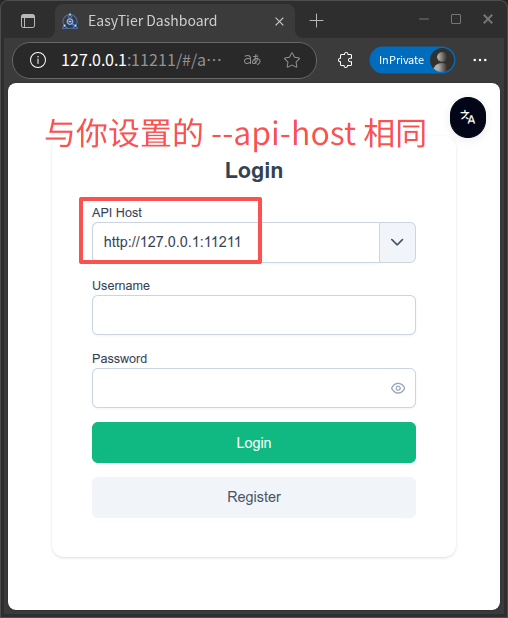
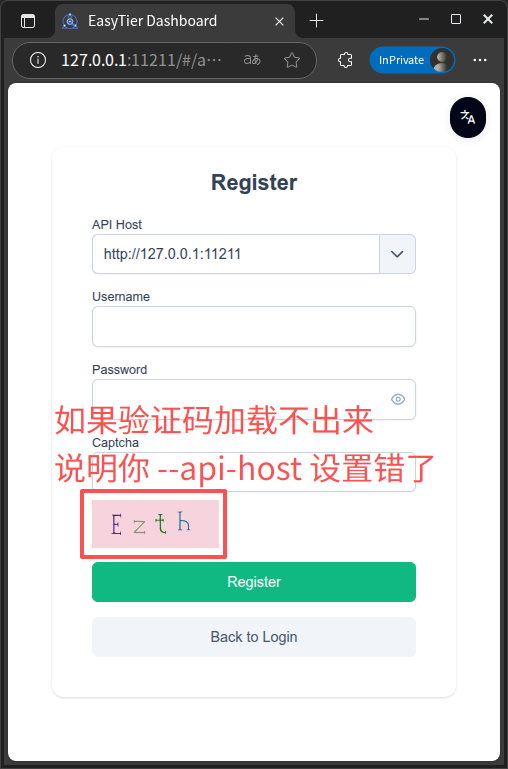
Click Register to create an account. If the verification code fails to load, your --api-host setting is incorrect.
Connecting to the Self-Hosted Web Console
Previously, we set up the web console locally with the configuration delivery port 22020 and UDP protocol. The command for EasyTier to connect to the self-hosted console is:
cli
# ./easytier-core -w <protocol>://<host>:<port>/<The_username_on_your_self-hosted_web_console>
# protocol: udp, tcp, ws, wss
./easytier-core -w udp://127.0.0.1:22020/<The_username_on_your_self-hosted_web_console>
docker-compose.yml
 services:
   easytier:
     # Domestic users can use DaoCloud image
     # image: m.daocloud.io/docker.io/easytier/easytier:latest
     image: easytier/easytier:latest
     hostname: easytier
     container_name: easytier
     restart: unless-stopped
     network_mode: host
     cap_add:
       - NET_ADMIN
       - NET_RAW
     environment:
       - TZ=Asia/Shanghai
     devices:
       - /dev/net/tun:/dev/net/tun
     volumes:
       - /etc/machine-id:/etc/machine-id:ro
       - ./conf:/config
     command: --config-server udp://127.0.0.1:22020/<The_username_on_your_self-hosted_web_console>
Subsequent usage is the same as the official console.
Attention
The web console has two default accounts. The usernames and passwords are admin and user respectively. Although these are regular accounts, their existence should still be noted.
Note
When the listening protocol is set to ws and is reverse-proxied as wss, set the protocol to wss when connecting.